- CSPro Getting Started Guide
- Introduction
- Installation
- CSPro Tutorial
- About the Tutorial
- Exercise 1: Create a Data Entry Application
- Exercise 2: Create the Data Dictionary
- Exercise 3: Create the Data Entry Forms
- Exercise 4: Enter Data
- Exercise 5: Tabulate Data
- Exercise 6: Modify the Table
- Exercise 7: Add Edits to the Data Entry Application
- Exercise 8: Run a Batch Application
Step 3: Run the Tabulation
(Exercise 5, Tabulate Data)
We are now ready to run the tabulation. We will use the data file you created in the previous exercise.
- Run the tabulation by clicking on
 on the toolbar, or pressing Ctrl+R. If CSPro prompts you to save the changes, click on Yes.
 - CSPro will ask you for the data file(s) to tabulate. Select MyData.dat. Make sure the dialog box is set to the folder you created for these exercises, C:\CSProTutorial.
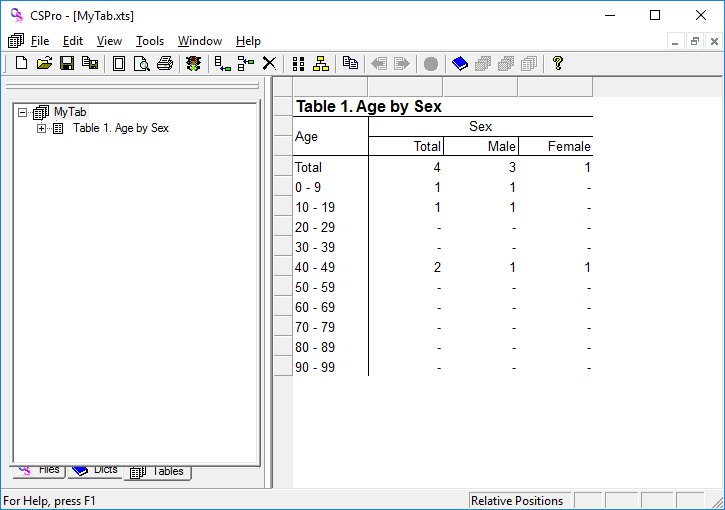
- The tabulated numbers will now appear in the table. That's all there is to it!
When you have completed this step the screen should look something like:
This completes this exercise. Continue to the next exercise: Step 1: Add Percents.