- Table Viewer User's Guide
- Introduction to Table Viewer
- Viewing Tables - How to ...
- Formatting Tables - How to ...
- Format a Part of a Table
- Format Row, Column, or Cell Data
- Format a Table
- Format an Application
- Format for Printing
- Change Table Text
- Hide or Show a Row or Column
- Change the Number of Decimal Places Displayed
- Add a Pagenote or Footnote
- Add Header/Footer Text
- Add Subtitle
- Change Stub Leadering
- Change Borders
- Change Reader Breaks
- Change the Way Numbers are Displayed
- Change Fonts or Colors
- Change Indentation or Alignment
- Change Position of Captions
- Change the Repeating of Boxheads
- Change Stub Column Position
- Modify Preferences
- Printing Tables - How to ...
- Saving Tables - How to ...
- Summaries
Change Fonts or Colors
There is no "global" way to change fonts or colors in a table. The formats of the individual elements, e.g., Title, Spanner, Caption, etc., must be individually modified to replace the 'default' fonts and colors.
There is also the option to change the default formats for each of these elements. The modifications will take effect immediately in ALL the tables.
In both circumstances, specific or default formats, the font and color are changed in the 'Font and Color' section of the format menu.
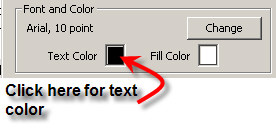
To change the font, click on the Change button and select the font characteristics from the available list.
To change the text or fill (background) click in the color box and select for the choices given.
See also: Modify Preferences