- <GetStart>
- CSPro User's Guide
- The CSPro System
- Data Dictionary Module
- The CSPro Language
- Data Entry Module
- Batch Editing Applications
- Tabulation Applications
- Data Sources
- Synchronization
- CSPro Statements and Functions
- Text Templates
- Templated Reporting System
- HTML, Markdown, and JavaScript Integration
- Action Invoker
- Appendix
- <CSEntry>
- <CSBatch>
- <CSTab>
- <DataManager>
- <TextView>
- <TblView>
- <CSFreq>
- <CSDeploy>
- <CSPack>
- <CSDiff>
- <CSConcat>
- <Excel2CSPro>
- <CSExport>
- <CSIndex>
- <CSReFmt>
- <CSSort>
- <ParadataConcat>
- <ParadataViewer>
- <CSCode>
- <CSDocument>
- <CSView>
- <CSWeb>
Simple Synchronizations
Setting the Synchronization Options
For basic synchronization scenarios, you can configure your data entry application for synchronization by selecting Synchronization from the Options menu:
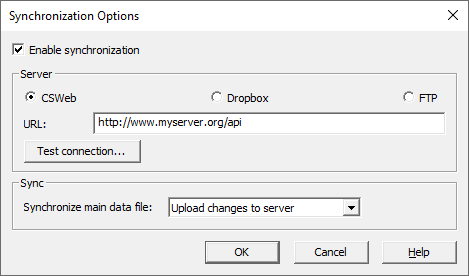
To add support for data synchronization to your application, check the Enable simple synchronization box.
Review the synchronization services supported by CSPro to determine what best fits your project's needs. CSWeb is the preeminent CSPro synchronization option but requires setting up and maintaining a server. An option like Dropbox may be suitable for a small- to medium-sized survey operation. After providing any relevant details (e.g., a server URL), click on the Test Connection to verify that the connection details are valid.
You can specify the synchronization direction:
- Upload changes to server (PUT): Only data that is modified on the device will be sent to the synchronization service. No data will be downloaded from the service. This is the most common option for interviewers when all interviewers work on unique assignments.
- Download changes from server (GET): Only receive modified data from the synchronization service. No local changes to the data will be uploaded to the service. This might be used for a supervisor who wants to see what changes interviewers have made but does not want to make changes themselves, or for a user at headquarters who wants to review data.
- Sync local and remote changes (BOTH): Send local changes to the synchronization service and download changes from the service. This option can be used when multiple interviewers need to work on the same assignments. Note that if both interviewers modify a case at the same time, one will overwrite the changes made by the other.
As part of a simple synchronization, CSPro will synchronize the data for the main dictionary but not for other dictionaries such as external dictionaries. You can change these default settings to specify which dictionaries should be synchronized. If you want even more control over what is synchronized, you can create your own synchronization routines using logic functions.
The synchronization options are used to synchronize data with a synchronization service but are not meant for deploying and updating the application itself. To download an application to a mobile device or update the application files of an existing application on a mobile device, use the Deploy Application tool to package and upload an application to a synchronization service. Interviewers can then download the application to their mobile device using Add Application from the Entry Applications screen of CSEntry. Interviewers can also update an application using Update Installed Applications from the Entry Applications screen of CSEntry.
Running Synchronizations
When synchronization options have been configured, an operator can launch the synchronization routine when running the data entry application. Synchronizations may not be run while entering case data.
On Android, the synchronization may be launched from the case listing view by choosing Synchronize from the menu or tapping the following icon:

On Windows, select the Synchronize option from the File menu.
Downloading Data
In order to download the data that has been uploaded to the synchronization service, use Data Manager's download feature. This will download all the data on the server into a single CSPro data source that can be used by other CSPro applications and tools.