(This example makes use of area name processing. Make sure that you understand area processing before you proceed with the example.)
Censuses often contain tables of population densities, e.g., population per square kilometer. While the census data file contains population totals, it generally does not contain information about the area (e.g., square kilometers, square miles, hectares, etc.) of a geographic level. This data is usually maintained in a separate file. This example illustrates how you can bring square area data into your application so that you can calculate population densities. Our standard for square area will be square kilometers. If you are using square miles, hectares, acres, etc., substitute accordingly. In the example below I am using the Popstan example in CSPro's example folder. Download the example.
1. Add a record to your census data dictionary to contain the square kilometer information. You will need to give this record a unique record type identifier. In this example I use "8" for the record type identifier for the square kilometers record.
2. Change all required records to "not required." (Make sure that your data has been properly edited!)
3. Obtain a file of square kilometers for the geographic levels. In this example, this data is contained in an Excel spreadsheet. You will need the lowest level of geography for which you are calculating population densities. In the attached example, I use Province and District, with District being my lowest level of geography.
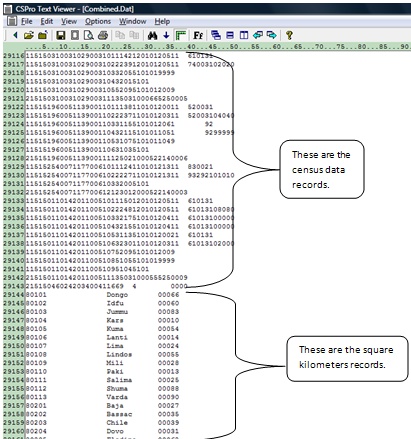
4. Export the square kilometer data into a fixed form text file (*.prn). The format of this file must match the format specified in the record type created in step 1. Space fill or zero fill ID fields that are not used for the levels of geography of the population densities. You can use Text Viewer to view the square kilometers file (PopStan_Sq_Km.prn). Below shows a portion of the square kilometers data used in this example.
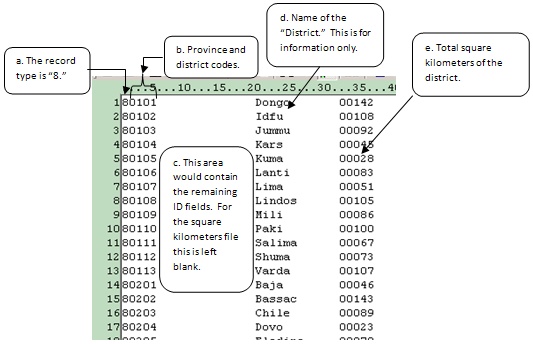
a. The first column contains "8." This is the record type of the square kilometers record.
b. Columns 2 and 3 contain the province code; 4 and 5 the district code. These are the geographic levels for which we will calculate population densities.
c. Columns 6 to 19 are the remaining ID files. These are space filled.
d. Columns 20 to 31 contain the name of the district. This is for information purposes only and is not used in the application. Note that we only have square kilometer data at the district level. This is because CSPro will calculate the province level data by summing the districts, and the Popstan total by summing the provinces.
e. Columns 32 to 36 contain the square kilometers for the district.
5. Now prepare your tables. In this example, the first table shows the distribution of square kilometers and the total square kilometers of a given geographic area. The second table shows the population for a given geographic area, the total square kilometers for that area, and the population density. Both tables use the same methods. We will focus on Table 2 because that table contains the population density.
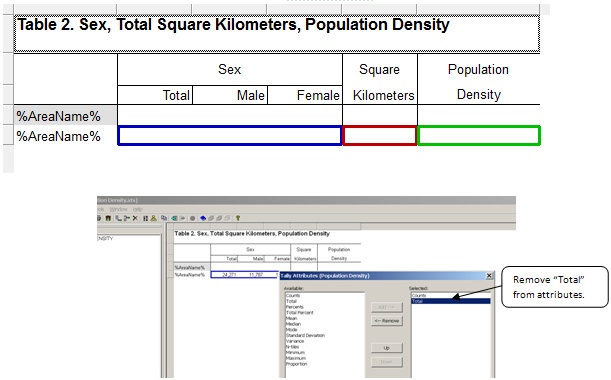
You will need a column for square kilometers in your table. This will actually be a subtable in your table. Do this by dragging the square kilometers value set to the table. Since you only need one column, remove unneeded attributes for the square kilometers column by right-clicking on the column header, clicking on Tally Attributes for the variable, and removing "Total" from the selected attributes.
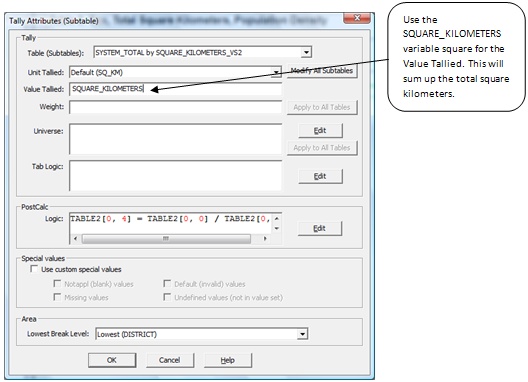
Since you are tallying the total square kilometers, you need to tally the value. Enter the variable name (SQUARE_KILOMETERS) for the "Value Tallied."
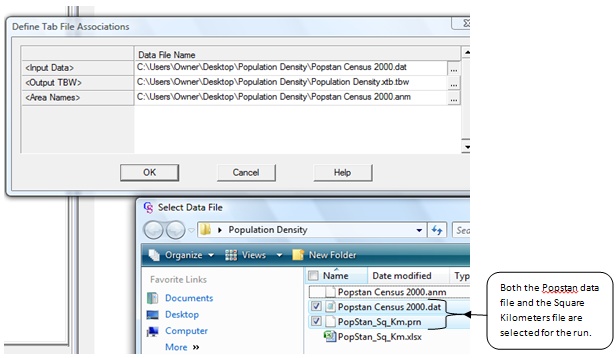
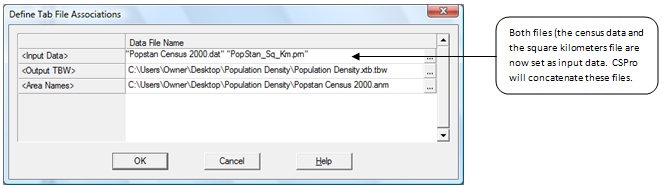
6. Run your tables. When you run the tables you will need to select both the data file and the square kilometers file.
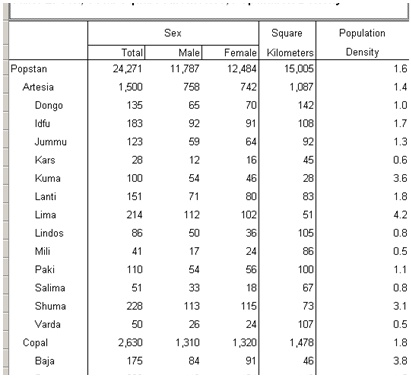
The following is a portion of the resulting table:
How does this work?
The basic concept is that we are adding new cases that contain only ID and square kilometer information for the geographic level. When CSPro processes the record it tallies them to the appropriate level of geography. There is one and only one record for that level of geography.
After CSPro tallies the table, in consolidates them; i.e., it puts together the level of geography to sum up to higher levels and then sorts the tallied tables.
Try running against only the square kilometers file. Note that Table 1 looks the same but Table 2 contains no population data because that file was not included. Now run against only the census data file. Notice now that Table 1 has no data. This is because the square kilometers file was not included. Table 2 contains only population data put no square kilometers data. Put the Census Population Data file and the Square Kilometers file together in a single run and you have all you need to calculate population densities.